It's free for qualifying schools under Google for Education Fundamentals, and it's a Core Service under Workspace for Education as of 4 August 2025 — meaning it's covered by the same FERPA/COPPA data-processing terms as the rest of your school's Google account, not a bolt-on AI tool with weaker rules.
The paid upgrade is Google AI Pro for Education, $15/user/month billed annually or $24 month-to-month, with a 25% discount for schools already on Education Plus.
What changed 10 August 2026: Gemini in Classroom dropped its 18-and-over restriction (web first, mobile from 17 August), and teacher-assigned materials can now sync directly into a student's Gemini Notebook — a real, current reason to look at this again if you tried it and stopped.
The one rule that matters most: for grading, IEP notes, or anything involving a specific student, you are the final decision-maker. Nothing here should be the thing that decides a grade or a placement on its own.
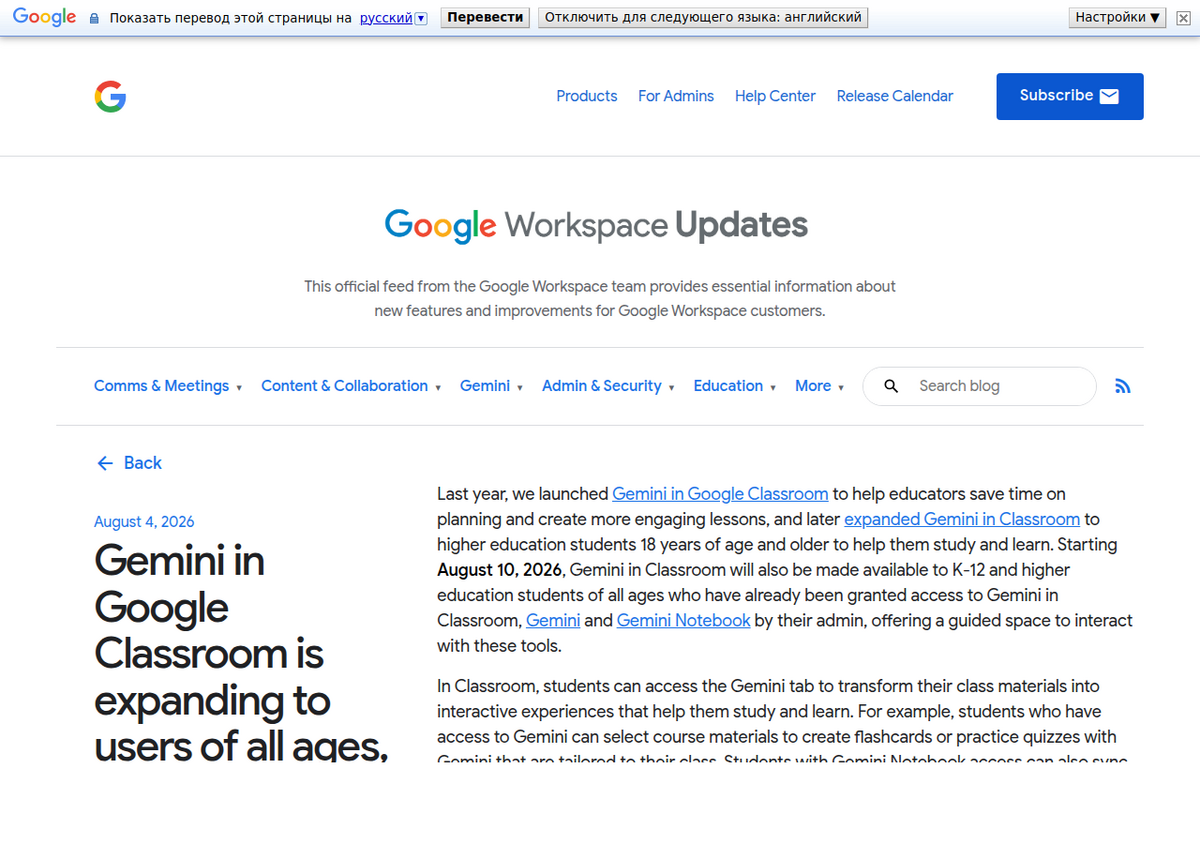
What changed this month
Gemini in Google Classroom's study tools were restricted to users 18 and older until this month. Per Google's own Workspace Updates post, that restriction lifted starting 10 August 2026 on web, with mobile following 17 August, across Workspace for Education Fundamentals, Standard and Plus. It's on by default for teachers and students of all ages; an admin who wants under-18 students kept off has to set up a separate organizational unit and disable it there specifically.
The part that actually matters for this guide: students with Gemini Notebook access can now sync teacher-provided materials directly into their own notebook, rather than the teacher having to hand out files for students to upload manually. If your school enabled Gemini Notebook a year ago and momentum stalled because setup felt like one more thing to manage, this is a genuine reason to revisit it — the friction that stopped a lot of classroom adoption just got smaller.
Pricing and the FERPA basics, stated together
Most guides give you one or the other. Both, current as of this writing: Gemini Notebook is free under Google for Education Fundamentals for qualifying institutions. The paid tier, Google AI Pro for Education, runs $15 per user per month billed annually, or $24 billed monthly, with a 25% discount if your school already has Education Plus.
On privacy, the distinction that matters is between an EDU account and a personal one, and it's unconditional on the EDU side: content, queries and responses on a Workspace for Education account are not reviewed by humans and are not used to train Google's models, even if a teacher submits feedback on a response. That's the Core Service designation from August 2025 doing its job — your institution owns the data, and Google is a processor under the Education Data Protection Agreement, the same framework covering Gmail and Drive in your school account. A personal Google account gets a weaker, conditional version of that same privacy promise. If a teacher is using a personal account instead of the school's, that difference is worth knowing before uploading anything with a student's name on it.
Building a unit's worth of materials in about 45 minutes
This is the workflow that shows up most often in practice, and it's straightforward: drop a textbook chapter, the relevant curriculum standards, and one supporting video or article into a single notebook as sources.
- Generate a briefing doc from the Studio panel's Reports option — this becomes your unit handout, pulling structure from the sources rather than you writing it from scratch.
- Generate an Audio Overview with a specific focus prompt, not the default. Something like "focus on the three ideas in chapter 4 a 9th grader will find hardest" produces something usable; the default overview is generic and pitched at nobody in particular.
- Generate a slide deck by naming the structure you want in the prompt — "one slide per key term, definition and example" — then revise two or three slides by hand rather than accepting the first draft wholesale.
Differentiation that isn't just "make it easier"
The most concrete differentiation workflow teachers describe is using Audio Overview as a pre-reading scaffold rather than a replacement for the text: generate it, then use the Studio panel's Customize option before generating to set the audience, angle and reading level explicitly. Framed for a struggling reader or an auditory learner, the same chapter that's overwhelming as dense text becomes something a student can listen to first, then return to the source material with a head start. For non-English or ELL classrooms, the underlying 80-plus language support extends to this — build the notebook in the classroom's primary materials, then generate outputs in a student's stronger language before the English-language version.
Grading support, with a hard boundary
One documented classroom workflow, from a teacher writing at musingsfromthemiddleschool.org, is specific enough to be worth describing exactly rather than paraphrasing into vagueness. One notebook per writing genre. Upload the student writing — including any existing feedback, say from a tool like Brisk — plus the rubric and a set of anchor papers as sources. Then prompt, close to verbatim: "Using the uploaded rubric and feedback, suggest a holistic score for each student writing piece." The teacher then spot-checks every suggested score against her own judgment before finalizing anything.
The framing that keeps this workable, stated as policy rather than a personal habit: you are always the final decision-maker. Treat the notebook's suggestion as a second set of eyes, not a replacement for your judgment, and never let a generated score reach a gradebook without your own read of the work.
Two things worth adding that this workflow doesn't spell out on its own. First, student writing is the student's work — get consent before uploading it anywhere, especially if you'd ever use the notebook or its outputs outside your own classroom. Second, this only holds up on a school EDU account with the Core Service protections described above; the same workflow on a personal account is uploading student work to a service without the unconditional FERPA-aligned guarantee.
IEP and special-ed material: anonymize first
IEP service logs, counseling referrals and similar records can be used the same way as any other source — built into a notebook to generate differentiated materials, summarize a student's accommodations, or draft parent-facing language — but only if your district's Google for Education agreement actually covers that use and access is properly scoped to the people who should see it. Where the data is genuinely sensitive, use anonymized references rather than full names: describe the accommodation and the goal without the identifying details a stray share or misconfigured access could expose. None of the ranking guides for this topic walk through this concretely; treat that gap as reason for more caution, not less.
Parent communication, verified before it's sent
A less obvious but genuinely useful notebook: build one around your parent-communication material specifically — the school newsletter template, recent announcements, your own conference notes and Classroom assignment summaries. Ask it to draft a parent email that's warm and gives specific next steps rather than a generic update. The step that makes this safe rather than risky: before sending anything, manually verify every date and fact against your actual conference agenda or gradebook, and check tone and wording against what your school's FERPA and COPPA expectations actually allow you to share. The notebook drafts; you verify and send.
When it's off: the admin, not the tool
If Gemini Notebook doesn't appear at all for you or your students, the most common cause by far is an administrator who hasn't enabled it for your organizational unit — not a bug, and not something you can fix from your own account. The fix runs through the school's Admin console, under Generative AI settings, not through anything a teacher can toggle. If you hit this, that's the conversation to have with your IT department before assuming the tool doesn't work.
When not to use this
- A single high-stakes summative grade, decided by the tool's suggestion alone rather than your own judgment applied to its suggestion.
- Uploading identifiable student data on a personal Google account instead of the school's EDU account, where the privacy guarantee is unconditional rather than dependent on you never giving feedback.
- A district that hasn't enabled it yet. Escalate to IT rather than trying to work around an admin-level restriction.
- Anything needing citation-verifiable rigor beyond what an Audio Overview or generated report reliably provides — for genuinely high-stakes research use, read our citation accuracy guide on what to check and when.
People also ask
Is Gemini Notebook free for teachers?
Yes, for qualifying schools under Google for Education Fundamentals. A paid tier, Google AI Pro for Education, is available at $15/user/month annual or $24 monthly, with a 25% discount for schools on Education Plus.
Is Gemini Notebook FERPA compliant for classroom use?
On a school Workspace for Education account, yes — it became a Core Service in August 2025, covered by the same Education Data Protection Agreement as the rest of your school's Google account, with content unconditionally excluded from human review and model training. That protection is weaker and conditional on a personal Google account, so use the school account for anything involving student data.
Can Gemini Notebook grade student work?
It can suggest a score against a rubric you upload, but treat it strictly as a second opinion. Teachers who use this workflow are explicit that the human reviewing every suggested score is the final decision-maker, not the notebook.
What changed for Gemini Notebook and Google Classroom in August 2026?
Gemini in Classroom's study tools dropped their 18-and-over age restriction starting 10 August on web (17 August on mobile), and students can now sync teacher-provided materials directly into their own Gemini Notebook rather than uploading files by hand.
Why can't my students see Gemini Notebook even though our school has Workspace for Education?
It's almost always an admin setting, not a bug. A district administrator has to enable Generative AI access for your organizational unit in the Admin console before it shows up for teachers or students in that unit.
Is it safe to upload IEP or special-education records?
Only if your district's Google for Education agreement covers that use and access is properly restricted. Where possible, anonymize identifying details rather than uploading full names alongside sensitive accommodation or referral information.